Product Structured Data: JSON-LD Guide
Want to add product schema to your site? Google uses Product markup to show price, availability and review stars in product rich results, and Google's product documentation sets out the offer fields it needs. Add the Product and Offer JSON-LD to the product page, preview it in the free Structured Data Preview tool, and confirm it with the Rich Results Test.
What is Product structured data?
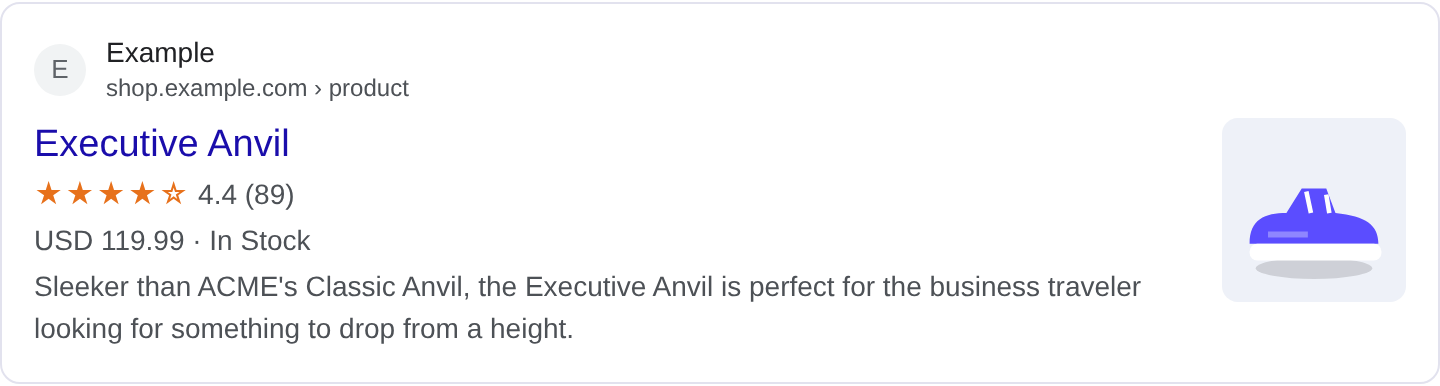
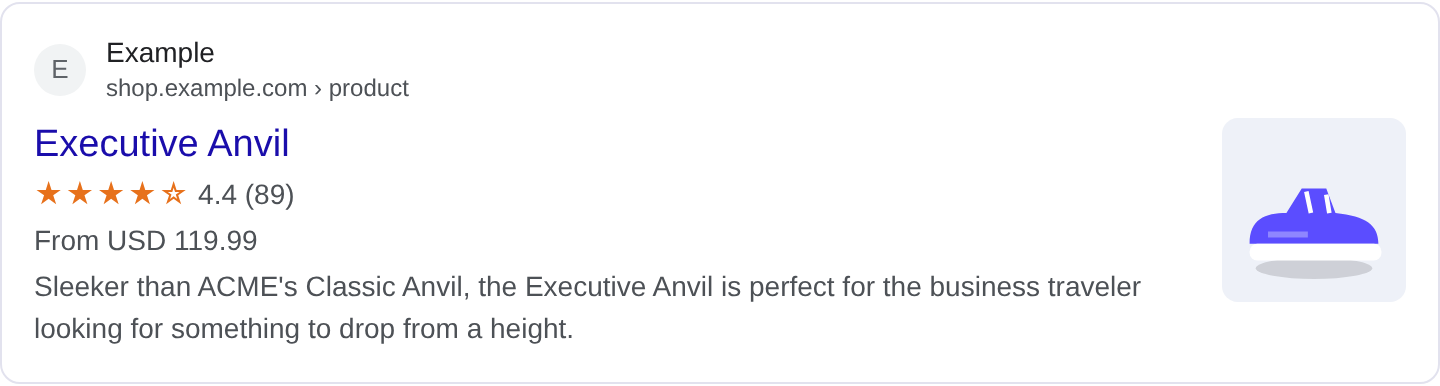
Product markup describes an item for sale so Google can show a rich result with the price, availability and often a review score right in the search result. When someone searches for a specific product, a marked-up page can show the price and stock status beneath the title, and sometimes stars from reviews. That is the difference between a plain link and a result that answers "how much is it and can I get it" before the click. Google's product documentation lists the offer and review properties it reads.
The Product type is the core. It carries the name, image, description, sku, brand and an offers block. The offers block is a nested Offer with the price, priceCurrency, availability and a url. Optionally you can add aggregateRating and review for the rich stars. Supporting types like Brand and AggregateRating fill in the details. Google uses this data for product rich results and for surfaces that compare products, so accuracy in price and availability is essential.
Product markup fits e-commerce sites, marketplaces and manufacturers selling directly. It does not fit a content page that mentions a product but does not sell it, because there is no offer to describe. If your page reviews a product and links to a retailer, that is a Review with a product mention, not a Product with your own offer. Google wants the offer to be real: the price and availability in the markup should match what the page shows.
What it looks like in search results
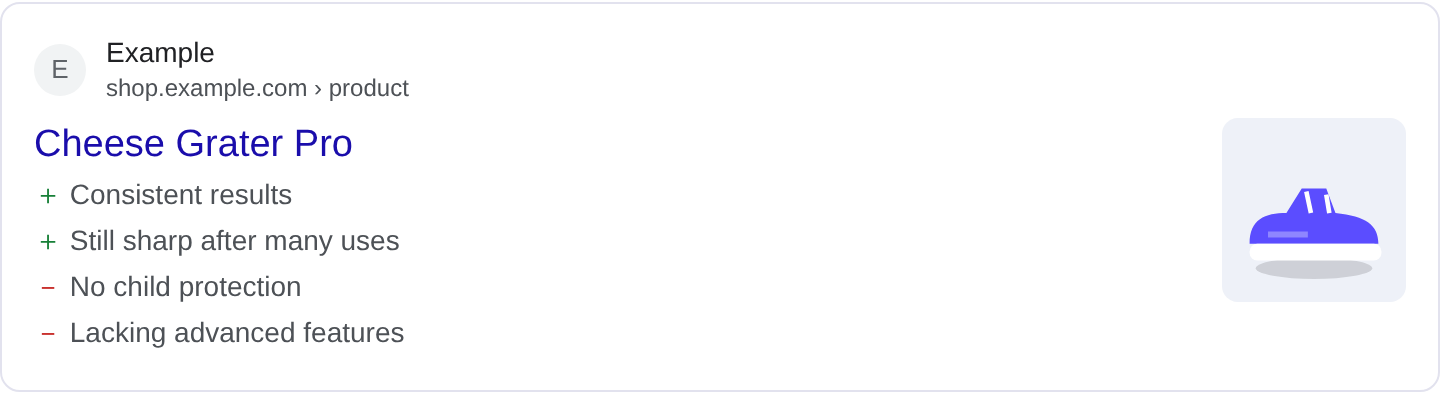
A marked-up product can show the price, availability and review stars in the result, sometimes with a thumbnail. On mobile the product details can appear in a more visual format. The exact layout varies by query, device and Google's product surfaces, so the real appearance may differ from any example. Check your page in the Rich Results Test and preview the fields with the Structured Data Preview tool.
JSON-LD example
{
  "@context": "https://schema.org",
  "@type": "Product",
  "name": "Trailhead 30L Daypack",
  "image": "https://example.com/images/trailhead-30l.jpg",
  "description": "A 30-liter daypack with a padded laptop sleeve and a rain cover, built for day hikes and commuting.",
  "sku": "TH-30-OLV",
  "brand": {
    "@type": "Brand",
    "name": "Trailhead Gear"
  },
  "offers": {
    "@type": "Offer",
    "priceCurrency": "USD",
    "price": "89.00",
    "availability": "https://schema.org/InStock",
    "url": "https://example.com/products/trailhead-30l",
    "itemCondition": "https://schema.org/NewCondition"
  },
  "aggregateRating": {
    "@type": "AggregateRating",
    "ratingValue": "4.6",
    "reviewCount": 312
  }
}
name, image and description identify the product. sku and brand help Google distinguish variants and manufacturers. The offers block is the heart: price and priceCurrency must be accurate, availability uses values like InStock or OutOfStock, and url points at the product page. itemCondition clarifies new, used or refurbished. aggregateRating adds stars if you have genuine review counts.
Required and recommended properties
Google needs name and either offers or review or aggregateRating. Without an offer, there is nothing to sell. The offers block must include price or priceSpecification and priceCurrency, plus availability and a url. The price should be the price a customer actually pays, including tax where required. A price that disagrees with the page is a direct quality problem.
Recommended: image, description, sku, brand, itemCondition, aggregateRating and review. For products with variants, mark up each variant or use a clear sku and offers array. Keep availability accurate; showing "in stock" for an out-of-stock item frustrates users and can be penalized.
How to add Product markup to your page
1) Use the validator and select the Product type. 2) Fill in the name, image, description, brand and a complete offers block. 3) Fix errors the preview flags, most often a missing currency or a price mismatch. 4) Paste the JSON-LD into the product page <head>. 5) Test the live URL in the Rich Results Test and confirm Google detects the Product with valid offers.
Common mistakes to avoid
Price that does not match the page. If the markup says $89 and the page says $99, the result is wrong and Google may drop it.
Missing currency. price without priceCurrency is invalid. Always include the currency code.
Availability that is stale. "In stock" on a sold-out item sends users to a dead end. Update it.
One Product for many variants. If a product has sizes and colors, each variant needs its own offers or a clear structure.
Fake reviews. Inflated reviewCount values are a quality problem and can be penalized.
Image that is a placeholder. Low-res or missing images make the result weak.
Using Product for a page that does not sell the item. A review page is not a product offer.
Copy-pasting offers from another site. The price and availability must reflect your own stock.
Frequently asked questions
Does product markup improve ranking? It can improve how your product appears with price and availability, which can lift click-through. It is not a direct ranking factor.
Do I need offers if I only review products? If you do not sell the product, use Review with a product reference rather than a Product with your own offer.
How do I handle variants? Mark up each variant with its own offers, or use a structured offers array with distinct SKUs.
What if my price changes often? Update the markup when the price changes. A stale price is worse than no price.
Related guides
Try it on your own content
The Structured Data Preview checks content against these practices in seconds. Free and no sign-up; see the tool page for how analysis works.