Organization Structured Data: JSON-LD Guide
Want to add organization schema to your site? Google uses Organization markup to show your logo, website and social profiles in the brand knowledge panel, and Google's organization documentation covers the logo and sameAs requirements. Add the JSON-LD to your homepage, preview the entity in the free Structured Data Preview tool, and validate it with the Rich Results Test.
What is Organization structured data?
Organization markup describes the entity behind a website: the company, nonprofit, agency or institution that owns it. It tells Google the organization's name, its logo, its official website, its social profiles and where to reach it. The payoff is the knowledge panel: when someone searches for your brand by name, a well-marked-up organization can appear in a panel with a logo, a description, a website link and social profiles. That panel is what users see when they want to confirm they have found the real organization. Google's organization documentation explains the logo and sameAs requirements.
The Organization type is the core, and there are specific subtypes like Corporation, NGO, EducationalOrganization and GovernmentOrganization. The key properties are name, url, logo, sameAs (links to official profiles), contactPoint and address. Supporting types like ImageObject for the logo and PostalAddress for the location fill in the details. The sameAs links are especially important because they are how Google connects your site to your official social and profile accounts.
Organization markup is for any entity with a web presence that wants to be recognized as itself rather than mistaken for a similarly named business. It is not for a personal blog with no organization behind it, which should use Person or ProfilePage. It is also not a replacement for a Google Business Profile for a local shop; that is LocalBusiness. If the goal is brand recognition and a clean knowledge panel, Organization is the right type.
What it looks like in search results
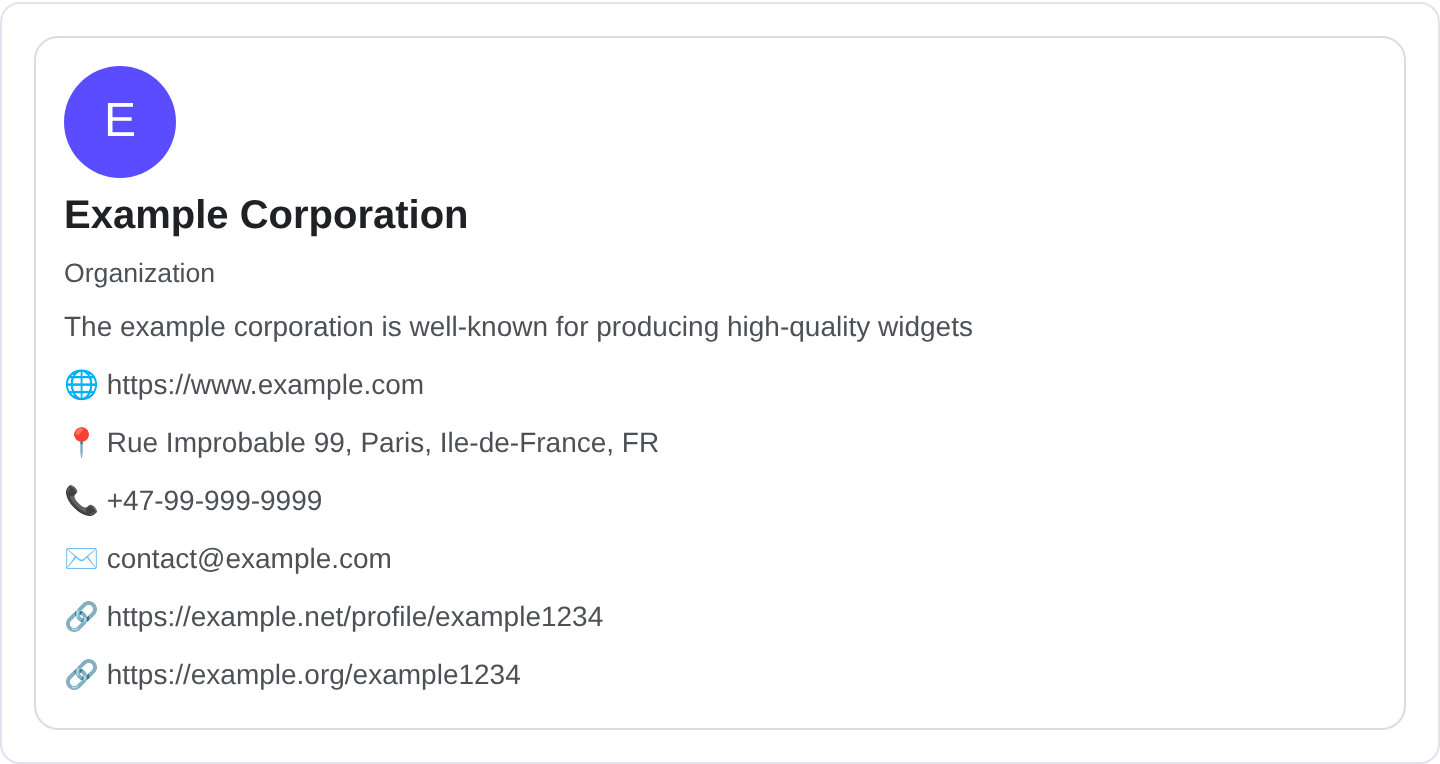
A marked-up organization can appear in a knowledge panel with the logo, a short description, the official website and links to social profiles. The exact layout depends on the entity, the query and Google's knowledge graph. The real appearance may differ from any example, so check your page in the Rich Results Test and preview the fields with the Structured Data Preview tool.
JSON-LD example
{
  "@context": "https://schema.org",
  "@type": "Organization",
  "name": "Riverbend Analytics",
  "url": "https://example.com/",
  "logo": {
    "@type": "ImageObject",
    "url": "https://example.com/logo.png",
    "width": 600,
    "height": 60
  },
  "description": "Riverbend Analytics builds data dashboards for mid-sized logistics companies.",
  "sameAs": [
    "https://www.linkedin.com/company/riverbend-analytics",
    "https://x.com/riverbenddata"
  ],
  "contactPoint": {
    "@type": "ContactPoint",
    "telephone": "+1-555-0199",
    "contactType": "customer service",
    "email": "hello@example.com"
  }
}
name and url are the anchors. logo should be an ImageObject with a URL and dimensions so Google can render it cleanly in the panel. sameAs is the list of official profiles, which is how Google links your social accounts to the organization. description is a short, factual summary, and contactPoint carries a phone or email with a contactType. Keep the name and logo consistent with what appears on the site.
Required and recommended properties
Google needs name and url at minimum. A logo is strongly recommended because it is the visual anchor of the knowledge panel. sameAs links are highly recommended because they help Google connect the dots between your site and your official accounts. Without a logo and sameAs, the organization has little to show.
Recommended: description for a clear summary, contactPoint for a real way to reach you, address if you have a physical location, and foundingDate or founder if relevant. Use the most specific subtype you can. Keep the logo dimensions accurate; a distorted or tiny logo gets dropped. Make sure every sameAs URL actually belongs to the organization, because a wrong link pollutes the entity.
How to add Organization markup to your page
1) Use the validator and select the Organization type. 2) Fill in the name, URL, logo with dimensions, sameAs profiles and contact details. 3) Fix errors the preview flags, usually a logo without dimensions or a missing URL. 4) Paste the JSON-LD into the homepage <head> so it applies site-wide. 5) Test the live URL in the Rich Results Test and confirm Google detects the Organization.
Common mistakes to avoid
Putting Organization markup on a local shop that needs LocalBusiness. Use the local subtype for a place customers visit.
Logo without dimensions. Without width and height, or with a tiny image, the logo may not render.
sameAs links that are not official. A link to an unrelated or outdated profile confuses the entity.
Generic name. "The Company" is useless. Use the exact registered name.
Missing URL. Without the canonical site URL, Google cannot tie the markup to your domain.
Using a personal page as an organization. A blog about a person is Person, not Organization.
Stale contact details. An old phone number or email sends customers nowhere.
Copying a competitor's logo or description. Scraped entity data is a quality problem and can look like impersonation.
Frequently asked questions
Does organization markup improve brand search? It supports the knowledge panel and helps Google recognize your brand, which can improve how you appear for name searches.
Do I need it if I already have a Google Business Profile? They serve different purposes. Organization is for the brand entity; LocalBusiness is for a physical location. You can use both.
Can a nonprofit use it? Yes, with the NGO subtype. The core properties are the same.
How often should I update it? Whenever the logo, contact details or profiles change. Stale data undermines the panel.
Related guides
Try it on your own content
The Structured Data Preview checks content against these practices in seconds. Free and no sign-up; see the tool page for how analysis works.