Image Metadata Structured Data: JSON-LD Guide
Want to add image metadata schema to your site? Google uses ImageObject markup to show creator, credit and licence details in image results, and you can read the full field list in Google's image metadata documentation. Add the JSON-LD to the page that hosts the image, preview it in the free Structured Data Preview tool, and confirm Google reads it with the Rich Results Test.
What is Image Metadata structured data?
Image metadata markup describes the details behind an image: who created it, where it was taken, what license it is under, and whether it can be licensed. Google uses this to show richer image results and to make licensing information available to users and to other publishers. When someone searches for a photo and sees a "licensable" label or a credit line, that comes from structured data attached to the image. It is less about ranking a page and more about making images trustworthy and reusable. Google's image metadata documentation lists the exact licensing properties it reads.
The type is ImageObject, which describes the image itself, and the supporting types do the heavy lifting: creator for the person or organization that made it, creditText for the credit line shown, copyrightNotice for the rights statement, license for the terms under which it is published, and acquireLicensePage for a page where someone can request or buy a license. contentLocation can describe where the image was captured. The combination tells the full story of an image's provenance.
This markup suits photographers, stock agencies, newsrooms, museums and anyone publishing images they want credited or licensed. It does not fit a decorative background image with no meaningful rights story, because there is nothing to describe. Google is building out image licensing surfaces, and accurate metadata is what feeds them. If you publish your own work and want it findable and properly attributed, this markup is worth the effort.
What it looks like in search results
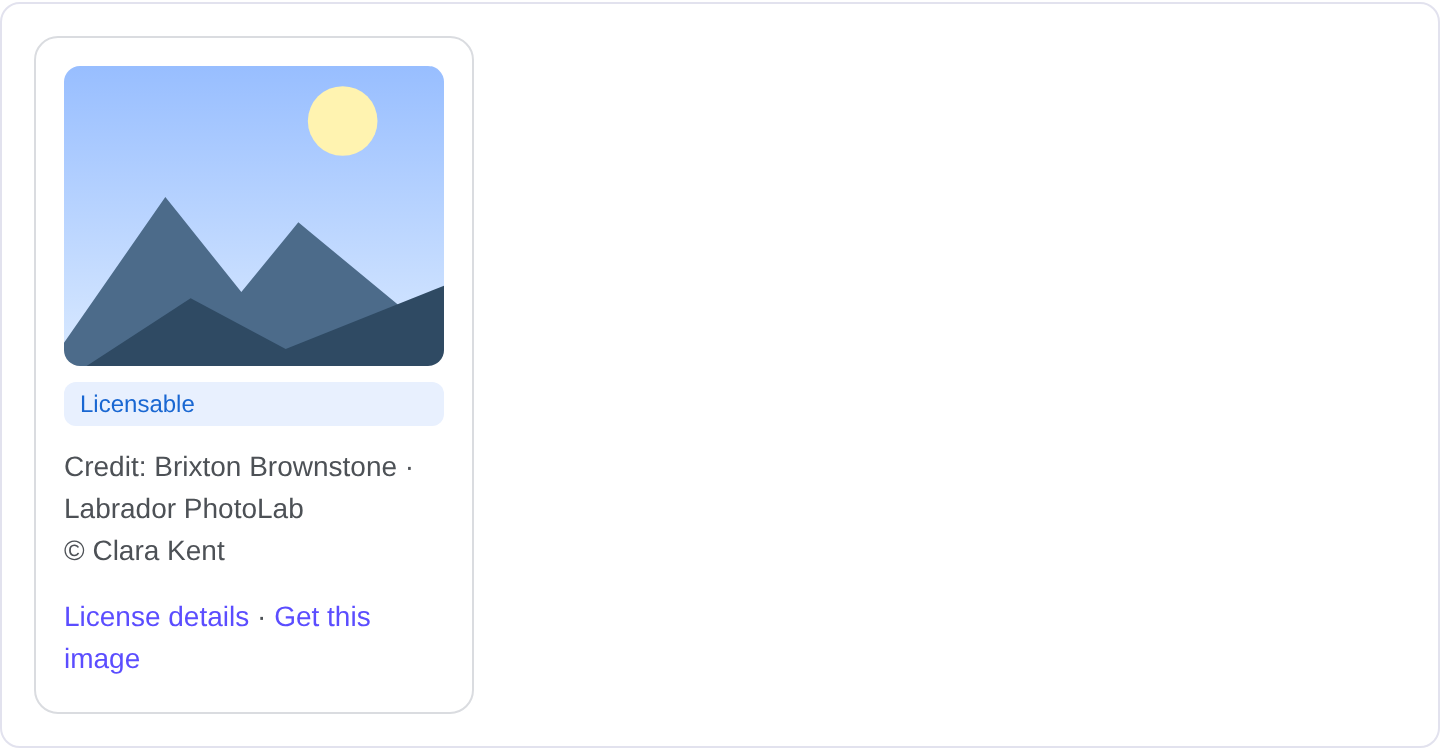
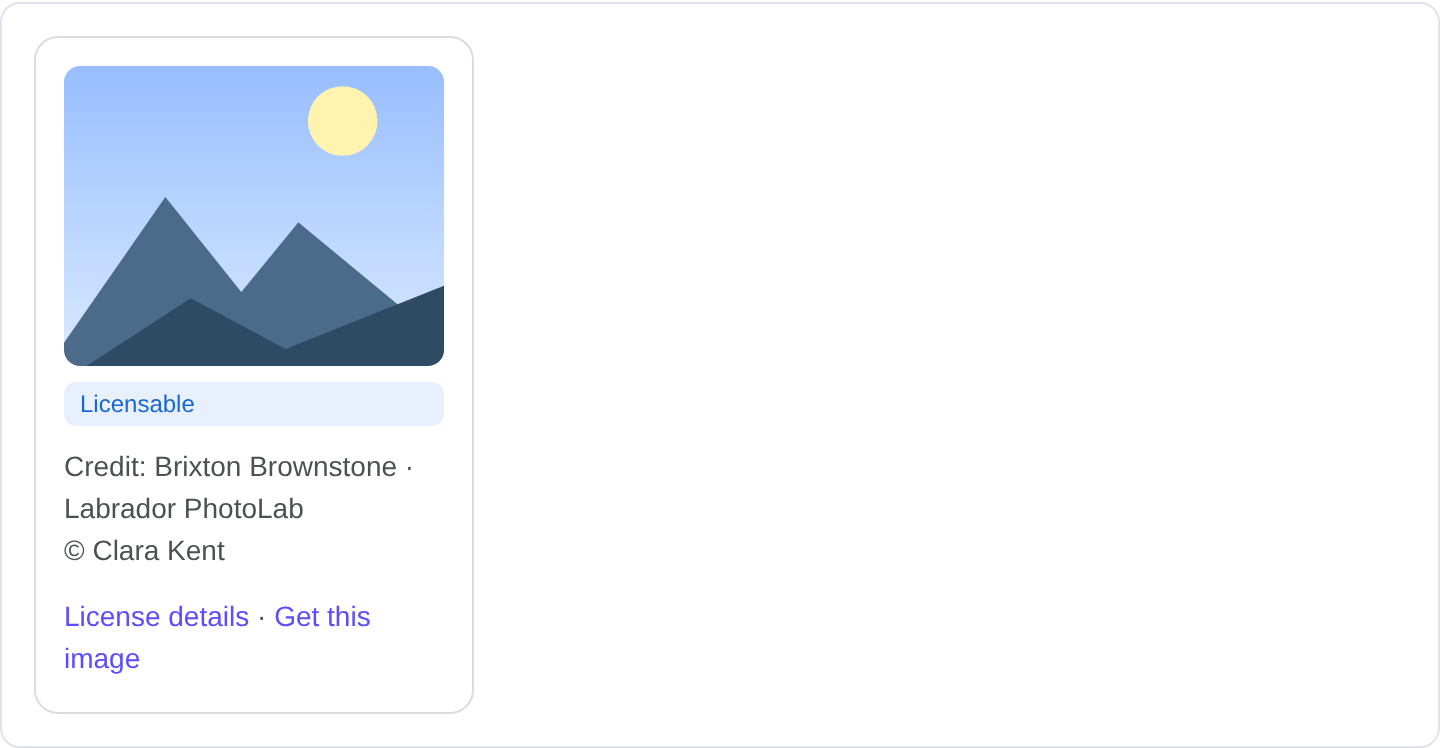
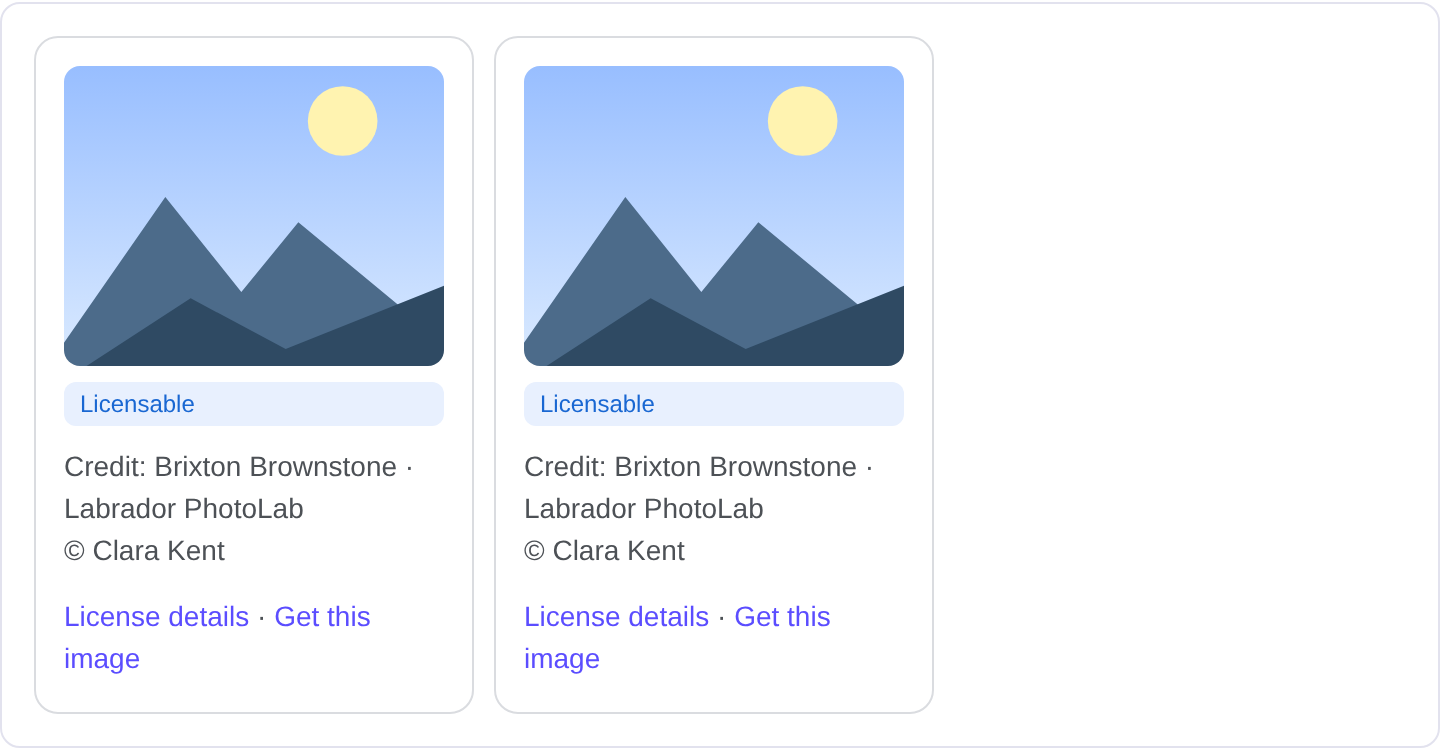
In image results, a marked-up image can carry a licensable label, a credit line or a link to license information. These details appear in the image detail view and sometimes in the results themselves. The presentation is evolving and depends on the query and the image, so the real appearance may differ from any example. Check your image in the Rich Results Test and confirm the fields with the Structured Data Preview tool.
JSON-LD example
{
  "@context": "https://schema.org",
  "@type": "ImageObject",
  "contentUrl": "https://example.com/photos/harbor-dawn.jpg",
  "name": "Harbor at dawn with fishing boats",
  "creator": {
    "@type": "Person",
    "name": "Elena Ruiz"
  },
  "creditText": "Elena Ruiz / Example Photos",
  "copyrightNotice": "© 2026 Elena Ruiz",
  "license": "https://creativecommons.org/licenses/by-nc/4.0/",
  "acquireLicensePage": "https://example.com/license/harbor-dawn",
  "contentLocation": {
    "@type": "Place",
    "name": "Harbor City Pier"
  }
}
contentUrl points at the image file itself, and name is a short description. creator credits the person or organization, and creditText is the line that should appear when the image is reused. copyrightNotice states the rights, license links to the terms, and acquireLicensePage points at the page where a license can be obtained. contentLocation adds where it was taken, which is useful for documentary and travel images.
Required and recommended properties
Google needs the image identified, usually through contentUrl or the page it sits on, plus enough metadata to be meaningful. For the licensing features specifically, creator, creditText, license and acquireLicensePage are the fields that matter. A license URL must point to real terms, and an acquireLicensePage must actually exist and do what it says.
Recommended: name for a descriptive title, copyrightNotice for the rights statement, contentLocation for documentary value, and description for a longer explanation. Keep the credit text consistent with how the image is credited elsewhere on the site. If the license changes, update both the license URL and the acquire page together; a mismatch makes the metadata unreliable.
How to add Image Metadata markup to your page
1) Use the validator and select the ImageObject type. 2) Fill in the content URL, creator, credit text, license and acquire-license page. 3) Fix errors the preview flags, most often a missing license or a broken content URL. 4) Paste the JSON-LD into the page that hosts the image, or into the image detail page. 5) Test the live URL in the Rich Results Test and confirm Google reads the ImageObject fields.
Common mistakes to avoid
No contentUrl. If the markup does not point at the actual image file, Google cannot connect the metadata to the image.
Fake or mismatched license. A license URL that does not match the actual terms, or a Creative Commons label on an all-rights-reserved image, is a serious accuracy problem.
Missing acquireLicensePage. If you claim an image can be licensed, the page should exist and work.
Credit text that does not match the visible credit. Google compares the markup with what is on the page. Keep them aligned.
Using ImageObject for a logo or icon. The rich image metadata features are for substantive images with a rights story, not UI decorations.
Copying another site's metadata. Scraped creator and license fields are easy to spot and undermine trust.
Vague names. "Photo 12" tells no one what the image is. Write a real description.
Forgetting to update the license when terms change. Stale metadata points users at the wrong rights.
Frequently asked questions
Does image metadata improve image search ranking? It can improve how your images are understood and displayed, especially in licensing surfaces, but it is not a direct ranking boost.
Do I need this for every image? No. Focus on images with a real rights story: original photography, illustrations, and content you want credited or licensed.
Can I use a Creative Commons license? Yes, as long as the URL points to the exact license and the image genuinely falls under it.
What is the acquireLicensePage for? It is a page where someone can request or buy a license for the image. It should be real and functional.
Related guides
Try it on your own content
The Structured Data Preview checks content against these practices in seconds. Free and no sign-up; see the tool page for how analysis works.